How do I amend the number of rooms?
Watch this video to see how to amend the number of rooms on a Staze booking.
- Go to your bookings page - https://staze.com/?bookings=upcoming
- Click into the booking you'd like to amend by clicking 'View Booking'
- Click 'Change Booking'
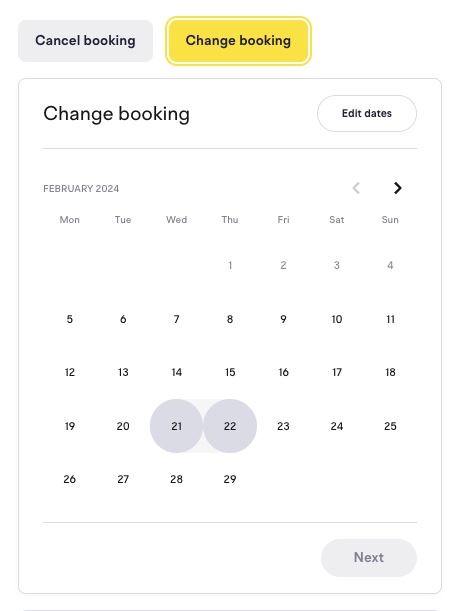
- Select the same dates
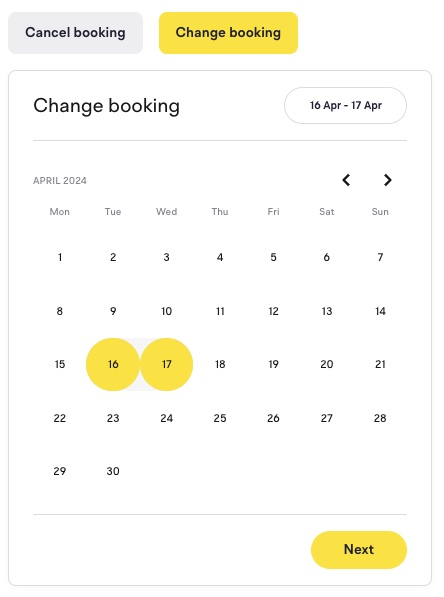
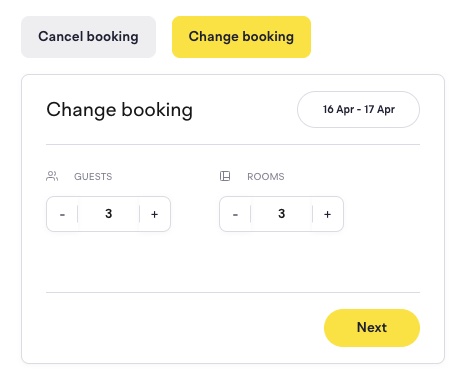
- Change the number of rooms/guests
- Finish the checkout flow
Note: On some amendment types, you may be required to cancel your original booking. If that is the case, you will be informed during the checkout flow.
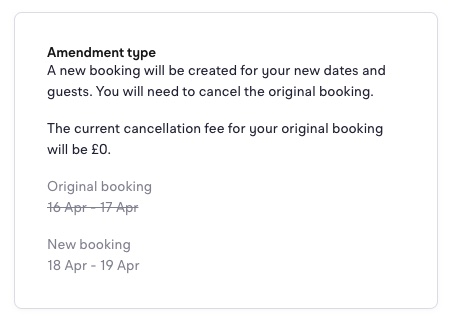
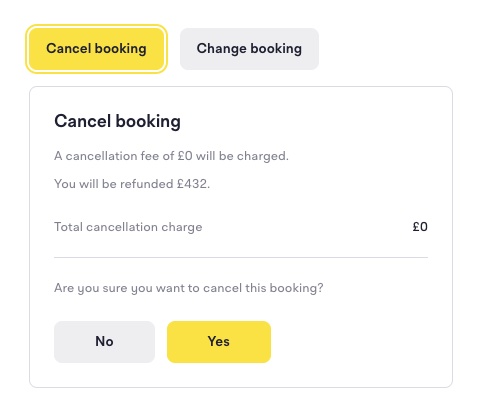
You can cancel the original booking by clicking the 'Cancel booking' button on your original booking.